QR Code Check-In for Appointments: Scan the Client's Pass
The appointment pass is a card with your business logo, the date, the service and a QR code. In Citalu, when the client arrives, you scan it from the dashboard and her appointment is marked with the exact arrival time.
By the Citalu team
What the client gets
When an appointment is confirmed, the confirmation email includes a "View my pass" button. You can also send it by WhatsApp from the appointment details, which helps when you booked it yourself and she did not leave an email. The pass opens on any phone with nothing to install, and it can be saved as an image to show without a connection.
How arrival is recorded
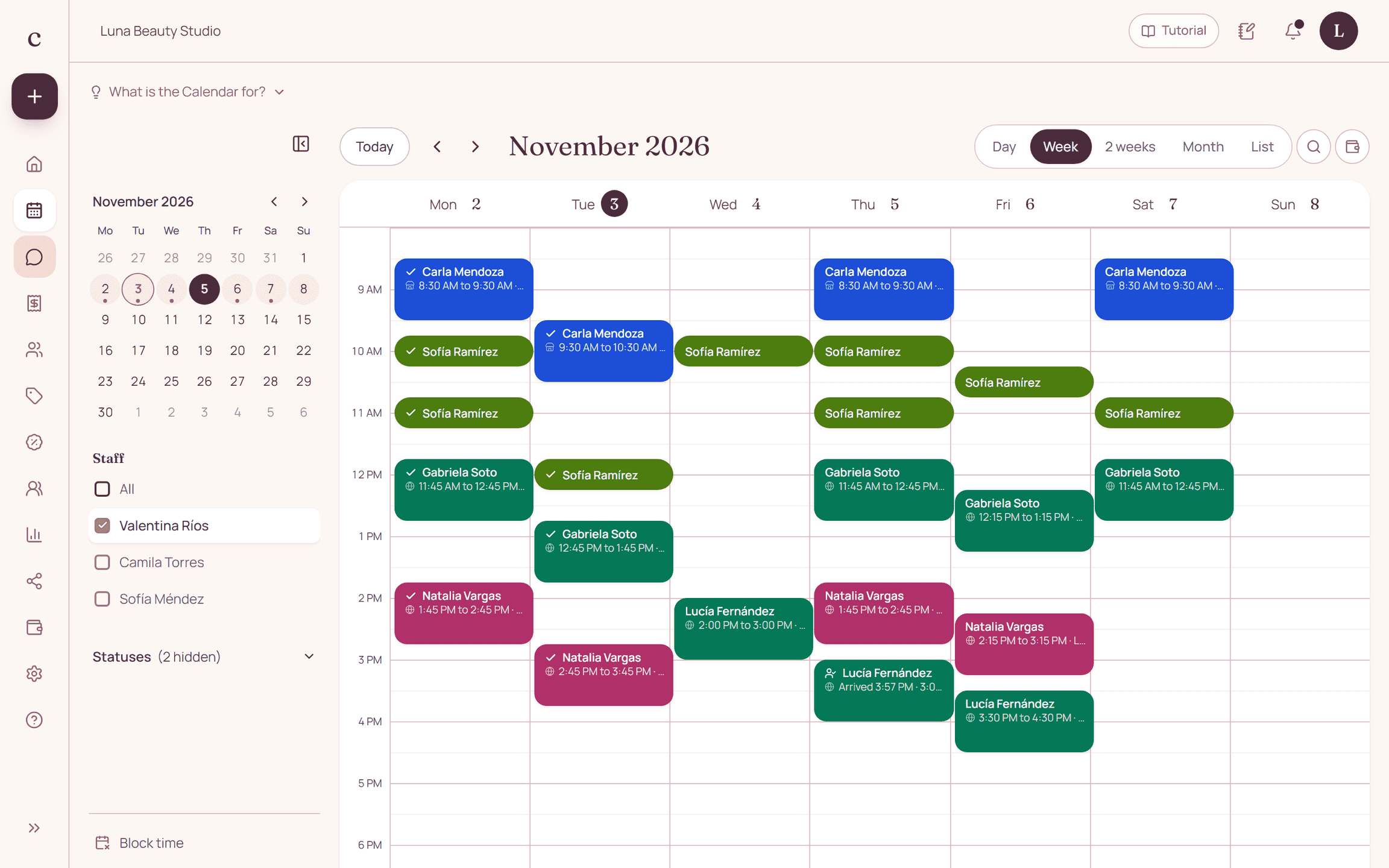
On the schedule you tap "Scan pass" and point the camera at the code. The appointment is marked with the arrival time, and you see it on the schedule with an icon. If the camera can't read it, you type the appointment code or open the appointment and tap "Arrived". Scanning again does not change the time.
Rules that prevent mistakes
Arrival can only be recorded for confirmed appointments, from two hours before until they end. A pass from another business or another day marks nothing and tells you why. Each provider records their own appointments, unless they can see the whole team's schedule. If you marked the wrong person, you can undo it the same day.
How to put it into practice
- Confirm a test appointment and open the pass from the email or with "Send pass".
- On the schedule tap "Scan pass" and allow camera access.
- Scan the code and check that the appointment shows the arrival time.
Frequently asked questions
Does the client need to install an app?
No. The pass is a page that opens from the link and can be saved as an image.
What if a client doesn't bring the pass?
Open her appointment on the schedule and tap "Arrived", or type the appointment code in the scanner.
Bring that order to your schedule
Try Citalu with your services and hours. You get 14 days free to see if it fits your business.