Print the Daily Appointment Schedule, by Provider or Client
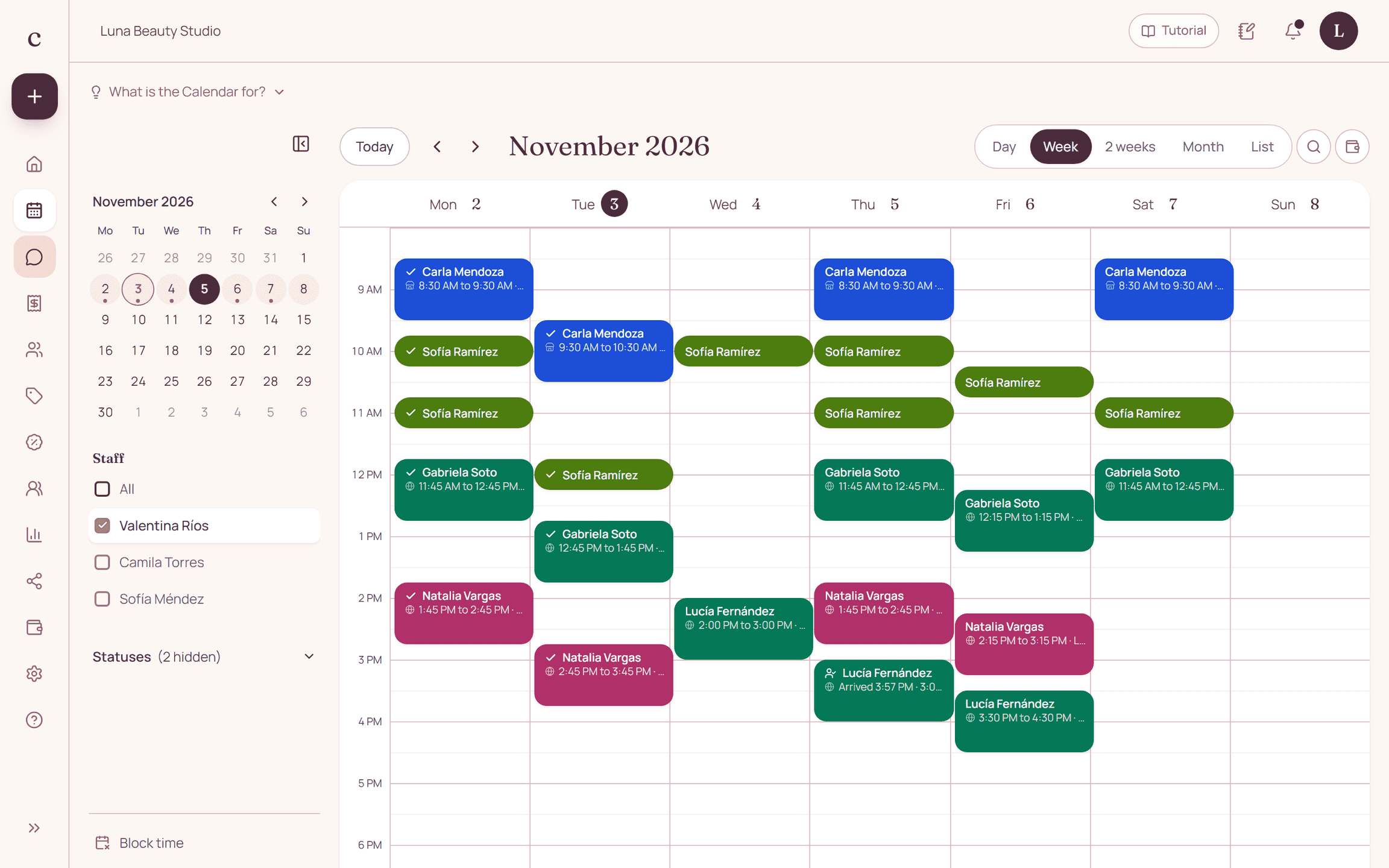
From the schedule, tap "Print the day" and the day's sheet comes out: time, client, service, provider, length, status and total for each appointment. You can print the full list, one sheet per provider, or one sheet per client to fill in by hand, on Letter or A4 paper.
By the Citalu team
Three ways to print
Full list, with all the day's appointments in order. By provider, one sheet for each with only their appointments. Sheets to fill in, one for each client who is coming, with her notes and room to write during the session.
Only what you need to work
The day sheet leaves out expired or declined bookings. The client sheets leave out canceled appointments and no-shows: they are for the people who do arrive.
Letter or A4
You choose the paper size and your browser prints or saves a PDF. Citalu remembers your choice on that device.
How to put it into practice
- On the schedule, tap "Print the day".
- Choose Full list, By provider or Sheets to fill in.
- Choose Letter or A4 and tap Print.
Frequently asked questions
Can I save the day sheet as a PDF?
Yes. When you print, your browser lets you save it as a PDF.
Is there a paper schedule I can get without an account?
Yes. Under Tools there is a free printable schedule, and you don't need to sign up.
Bring that order to your schedule
Try Citalu with your services and hours. You get 14 days free to see if it fits your business.