Track Client Attendance and No-Shows on Your Schedule
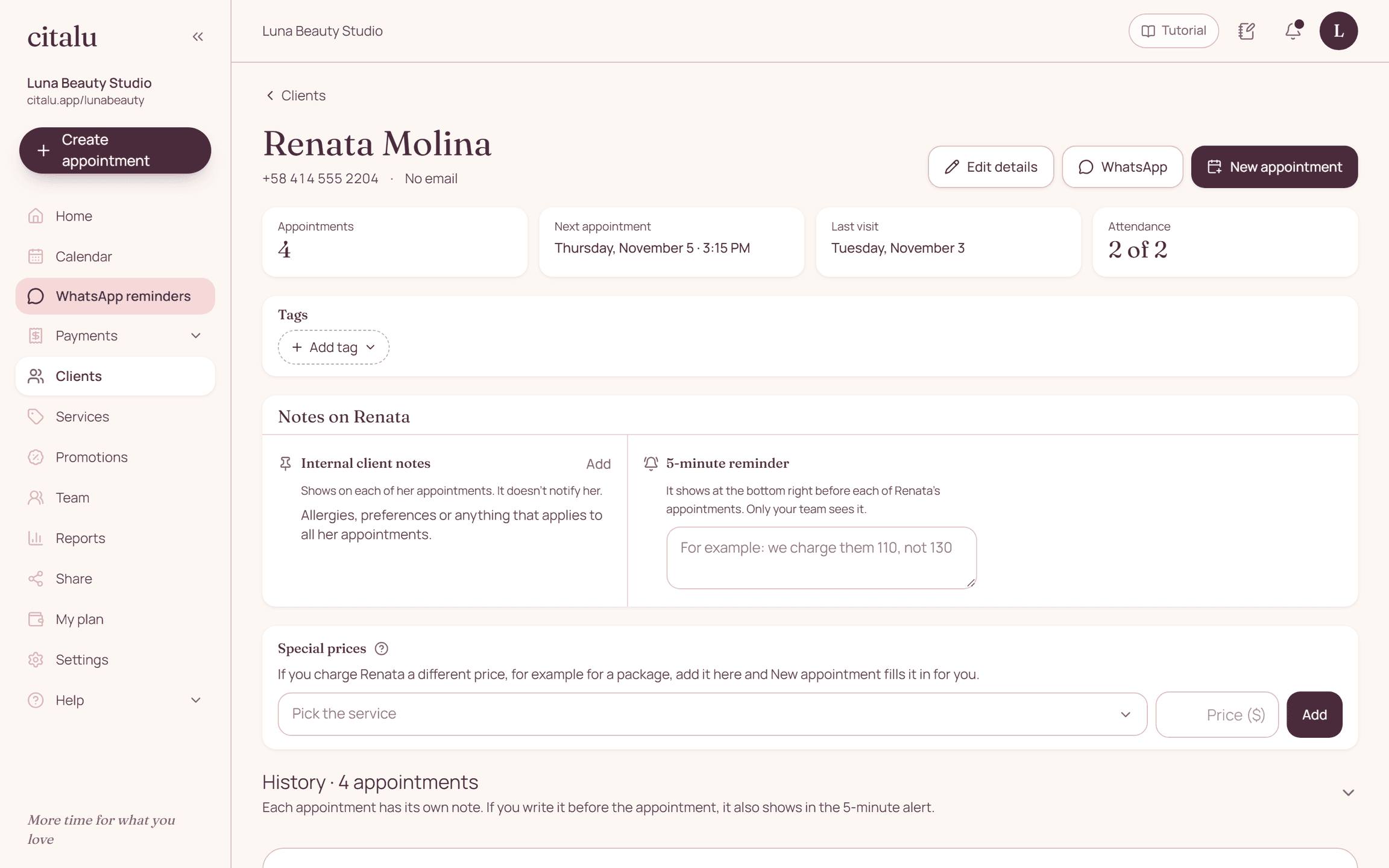
Every appointment on Citalu's schedule starts with an attendance circle: green with a ✓ if the client came, yellow if she was a no-show, red with an ✗ if it was canceled, and gray if there's no information yet. The client profile adds up her appointments and her no-shows.
By the Citalu team
How to mark it
When the client arrives, scan her pass or tap "Arrived". When you finish, tap "Complete". If she didn't come, tap "No-show". Arrived and Complete turn on 2 hours before the start, so nobody marks tomorrow's appointment by mistake.
Citalu asks you after 15 minutes
15 minutes after a confirmed appointment starts, if nobody has closed it, Citalu asks whether the client came: on Home, on the schedule and in the notifications bell. You tap "Attended" or "Didn't come" and, if you want, mark whether she was early, on time or late.
Your note, 5 minutes before
When you book an appointment, you can write a note, like "we charged $110, not $130" or "she wants to add arms". Five minutes before it starts, Citalu shows it to you in the dashboard. If you check "Remind me on her next appointments", it shows up on all of that client's appointments.
What you see at a glance
On the day view, the circles tell you which appointments still need to be closed. The schedule's legend explains each color. At the end of the day, no gray circle should be left.
The history of each client
The client profile keeps her appointments, her no-shows and her notes. If a client misses often, you see it before you give her another time.
How to put it into practice
- Tap "Arrived" or scan the pass when each client arrives.
- Tap "Complete" or "No-show" when you finish.
- Before you close the day, check that no gray circle is left.
A common question
Does the client see that I marked "No-show"?
No. It's information on your schedule and her profile, for you and your team.
Bring that order to your schedule
Try Citalu with your services and hours. You get 14 days free to see if it fits your business.